.png?width=1286&height=255&name=logo-raspberry%20(1).png)
The Tasks datagrid provides a centralized place to view and manage all tasks associated with a Case, Intake Report, or Provider.
Within each record, the Tasks datagrid displays both workflow tasks and ad hoc tasks, allowing you to manage all work associated with that record from a single location. Whether you're completing an intake, managing an active case, or working with providers, the Tasks datagrid helps you stay organized by making it easy to view assignments, track progress, and complete work.
Where is the Tasks Datagrid Available?
The Tasks datagrid is available within:
- Cases
- Intake Reports
- Providers
Each record includes its own Tasks datagrid that displays the tasks associated with that specific record.
Understanding the Tasks Datagrid
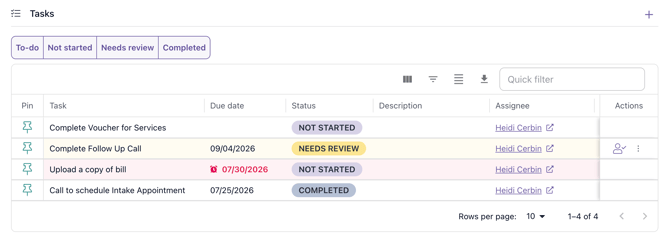
The Tasks datagrid displays important information about each task.
| Column | Description |
|---|---|
| Pin | Pin important tasks for quick access. |
| Task | The name of the task. |
| Due Date | The date the task should be completed. |
| Status | Displays the current status of the task. |
| Description | Additional information about the task. |
| Assignee | The person responsible for completing the task. |
| Linked Resource | Displays any resource associated with the task. |
| Workflow | The workflow associated with the task, when applicable. |
| Step | The workflow step associated with the task. |
| Step Due Date | The due date for the workflow step. |
| Step Assignee | The assignee for the workflow step. |
| Created By | The user who created the task. |
| Created On | The date the task was created. |
You can customize the datagrid by selecting which columns are displayed, applying filters, adjusting the display density, and exporting task information.
Working with Tasks
The Tasks datagrid allows you to manage all work associated with a record. From the Tasks section, you can:
- View workflow and ad hoc tasks.
- Create new ad hoc tasks.
- Update task statuses.
- Complete assigned tasks.
- View task descriptions and due dates.
- See who is assigned to each task.
- Filter, sort, and export task information.
Workflow Tasks and Ad Hoc Tasks
The Tasks datagrid displays two types of tasks:
Workflow Tasks
Workflow tasks are created as part of a workflow and help guide users through predefined business processes. Examples include:
- Complete an assessment
- Obtain supervisor approval
- Review submitted documentation
- Schedule a follow-up appointment
Ad Hoc Tasks
Ad hoc tasks are created manually to capture work that falls outside of a workflow. Examples include:
- Call the participant
- Email a community partner
- Upload supporting documentation
- Follow up on a voicemail
Both task types appear together in the Tasks datagrid for the record, providing a complete view of the work that needs to be completed.
Find and Organize Tasks
The Tasks datagrid includes several tools to help you quickly find the work you need.
Status Tabs
Use the status tabs to quickly filter tasks by their current status. Available views include:
- To-do
- Not Started
- Needs Review
- Completed
Quick Filter
Use Quick Filter to search by Task name and Description.
Columns
Customize which columns are displayed in the Tasks datagrid. By default, Workflow-specific columns are hidden to keep the view focused on the most commonly used information. You can choose which columns to display, and your preferences are automatically saved, so you only need to configure them once.
Filters
Apply filters to narrow your task list using available task fields.
Density
Adjust the spacing between rows to display more or fewer tasks on the screen.
Export
Export your current task list to a CSV file for reporting or additional analysis.
Best Practices
To help keep work organized:
- Review your assigned tasks regularly.
- Use filters and Quick Filter to locate specific work.
- Pin frequently referenced tasks.
- Update task statuses as work progresses.
- Complete tasks by their due dates whenever possible.
- Use ad hoc tasks to capture additional work that isn't part of a workflow.
Frequently Asked Questions
Can I view both workflow tasks and ad hoc tasks together?
Yes. The Tasks datagrid displays both workflow tasks and ad hoc tasks associated with the current record.
Are tasks shared across Cases, Intake Reports, and Providers?
No. Each Case, Intake Report, and Provider has its own Tasks datagrid containing only the tasks associated with that record.
Can I customize the Tasks datagrid?
Yes. You can customize visible columns, apply filters, adjust display density, use Quick Filter, and export your task list.
Can I create a new task?
Yes. Users can create ad hoc tasks directly from the Tasks section of a Case, Intake Report, or Provider.
How do I know if a task belongs to a workflow?
Workflow tasks include information such as the associated Workflow, Step, Step Due Date, and Step Assignee.
Need Help?
If you have questions about using the Tasks datagrid, contact the Casebook Support Team at support@casebook.net. We're happy to help.