.png?width=1286&height=255&name=logo-raspberry%20(1).png)
Workflow Step Approvals allow your organization to require one or more reviewers to approve a workflow step before work can continue. Instead of relying on manual communication or role-based permissions alone, reviewers are explicitly assigned and can approve or reject work directly within the workflow.
Whether you need a supervisor to review documentation, a program manager to approve eligibility, or multiple levels of approval before moving forward, Workflow Step Approvals help ensure accountability while keeping work moving.
What are Workflow Step Approvals?
Workflow Step Approvals let workflow administrators define who must review a workflow step before it can be completed.
Unlike standard workflow tasks, which are completed by the assigned worker, approvals require designated reviewers to verify that the work meets your organization's requirements.
Reviewers can be assigned dynamically, allowing workflows to adapt automatically based on who is working on the case.
How Workflow Step Approvals Work
Workflow Step Approvals consist of two parts:
Workflow Configuration
Workflow administrators determine:
- Whether a workflow step requires approval
- Who reviews the step
- The order reviewers complete their reviews
Workflow Execution
When a workflow reaches a review step:
- The assigned worker completes all required tasks.
- The workflow enters In Review status.
- The first reviewer receives the approval request.
- The reviewer approves or rejects the step.
- If additional reviewers exist, the next reviewer is notified.
- Once every reviewer approves, the workflow automatically advances to the next step.
If any reviewer rejects the step, the workflow returns to the assignee so changes can be made before it is submitted for review again.
Configure Workflow Reviewers
When building or editing a workflow, open the desired workflow step and locate the Reviewers section. You can add one or more reviewers to define your approval process.
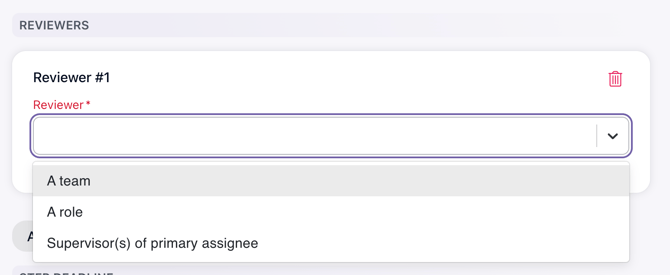
To add a reviewer:
- Open the workflow template.
- Select the workflow step.
- Scroll to the Reviewers section.
- Click Add Reviewer.
- Choose who should review the step.
- Repeat if additional reviewers are required.
- Save the workflow.
Reviewer Types
Workflow approvals support several reviewer assignment options.
| Reviewer Type | Description |
|---|---|
| Team | Any member of the selected team can complete the approval. The first team member to approve satisfies the requirement. |
| Role | Any user assigned the selected security role can approve the step. This option maintains compatibility with existing workflows. |
|
Supervisor of the Primary Assignee |
Automatically assigns the approval to the supervisor of the user currently responsible for the workflow step. |
These dynamic assignment options help prevent workflows from becoming dependent on specific individuals while maintaining clear ownership.
Add Multiple Reviewers
You can configure multiple reviewers for a single workflow step.
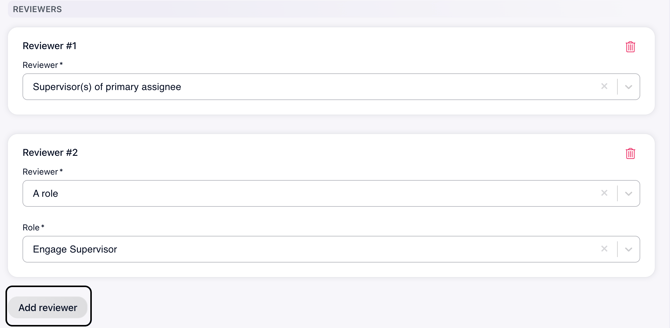
Reviewers are evaluated in order.
For example:
- Supervisor reviews first.
- Program Manager reviews second.
- Director reviews last.
The second reviewer will not receive the approval request until the first reviewer has approved the step. This allows you to build approval chains that match your organization's internal review process.
Reviewing Workflow Steps
When a workflow enters a review stage, the workflow displays a Review section beneath the workflow tasks.
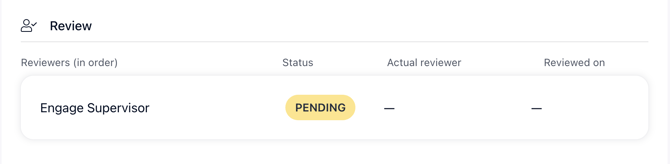
The Review section shows:
- Each reviewer in the approval sequence
- Current review status
- Who completed the review
- Review date
As approvals are completed, the workflow updates automatically so everyone involved can easily track progress.
Approve or Reject a Workflow Step
Once assigned a review:
- Open the workflow.
- Review the completed tasks and supporting information.
- Select either:
- Approve Step
- Reject Step
If the step is approved
The workflow moves to the next reviewer or advances to the next workflow step if all approvals have been completed.
If the step is rejected
The workflow returns to the assigned worker so corrections can be made.
After updates are complete, the workflow can be submitted for review again.
Notifications
When a workflow enters review, Casebook automatically determines who should review the step.
Depending on how the reviewer was configured, reviewers may receive:
- A Home Dashboard approval item
- An in-app notification
- An email notification (for Team and Supervisor reviewers)
Only the reviewer currently responsible for the approval is notified, helping reduce unnecessary notifications.
Best Practices
To create efficient approval workflows:
- Keep approval chains as short as possible.
- Use Supervisor of Primary Assignee when approvals should automatically follow reporting relationships.
- Use Teams when multiple people can perform the same review.
- Reserve multiple approval levels for processes that truly require additional oversight.
- Clearly describe each workflow step so reviewers understand what they're approving.
Frequently Asked Questions
Can a workflow have more than one reviewer?
Yes. You can configure multiple reviewers for a single workflow step. Reviewers complete approvals sequentially.
Can I assign a reviewer to a specific user?
Workflow approvals are designed to use dynamic reviewer assignments, such as Teams, Roles, or Supervisors. This keeps workflows flexible as staffing changes occur. Using dynamic assignments makes your workflows more resilient. If a specific employee changes roles, leaves the organization, or is unavailable, you can simply update the team's membership instead of editing every workflow that references that person. This approach reduces maintenance and helps ensure approval requests continue flowing without interruption.
Best Practice: Even if only one person is responsible for approvals today, consider creating a team (for example, "Program Directors" or "Finance Approvers") and assigning the workflow to that team. This gives you the flexibility to add or replace approvers in the future without modifying your workflows.
What happens if a reviewer rejects a step?
The workflow returns to the assigned worker for updates. After the work is resubmitted, the approval process begins again from the first reviewer.
Can anyone on a team approve the step?
Yes. When a Team is selected as the reviewer, any member of that team can complete the approval. Once one team member approves, the review requirement is satisfied.
Can supervisors approve work automatically?
Yes. Selecting Supervisor of Primary Assignee automatically routes the approval request to the supervisor of the user responsible for the workflow step
Need Help?
If you have questions about Workflow Step Approvals or need assistance configuring your workflows, contact the Casebook Support Team at support@casebook.net. We're here to help.