.png?width=1286&height=255&name=logo-raspberry%20(1).png)
Introduction
Guides for Casebook API refer to documentation and samples available in Postman.
The simplest way to follow along with these guides is to "Fork" relevant APIs from Casebook's account as you proceed.
Creating a fork of Casebook APIs requires a free Postman account which will then allow you to test API endpoints with your Casebook account.
To Fork one or more APIs, click the "Fork" button from each Postman link below and follow prompts to create a working copy of each API in your account.
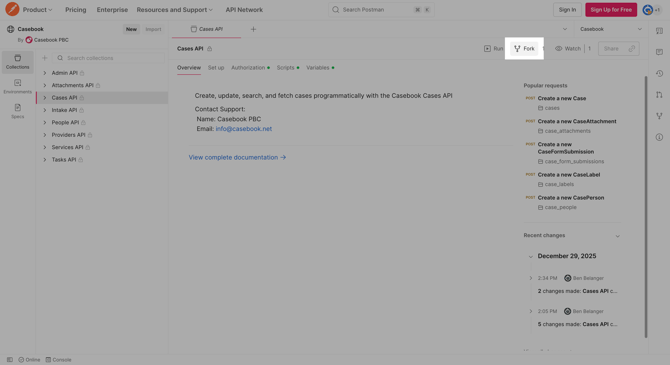
The following API documentation can be forked from Postman:
Prerequisites
Your organization must be licensed for External Data Interoperability (API) to interact with the Casebook API.
You will need to register an incoming application and obtain a Bearer token before starting this guide.
Instructions
Fork Casebook APIs
To get started, sign up for a free Postman account if you do not already have one and then sign in to your Postman account.
Click into each Casebook API that you're interested in working with from the list above and then click "Fork" button for each API.
- Fork label (Required): Set a custom name or leave the default value
- Workspace (Required): Select the workspace where you would like to fork this API
- Environments to fork (Optional): A "Casebook" environment will be selected by default. This is only required for the first forked API and the Casebook option may be unchecked for any additional forked APIs.
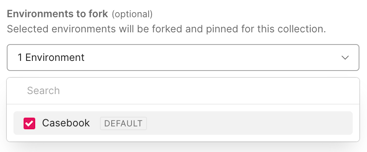
- Notifications (Optional): It's best to leave "Watch original collection" checked so that you will be able to easily update your fork as changes are published by Casebook.
Repeat for each API that you are interested in working with or testing.
Configure Casebook Environment
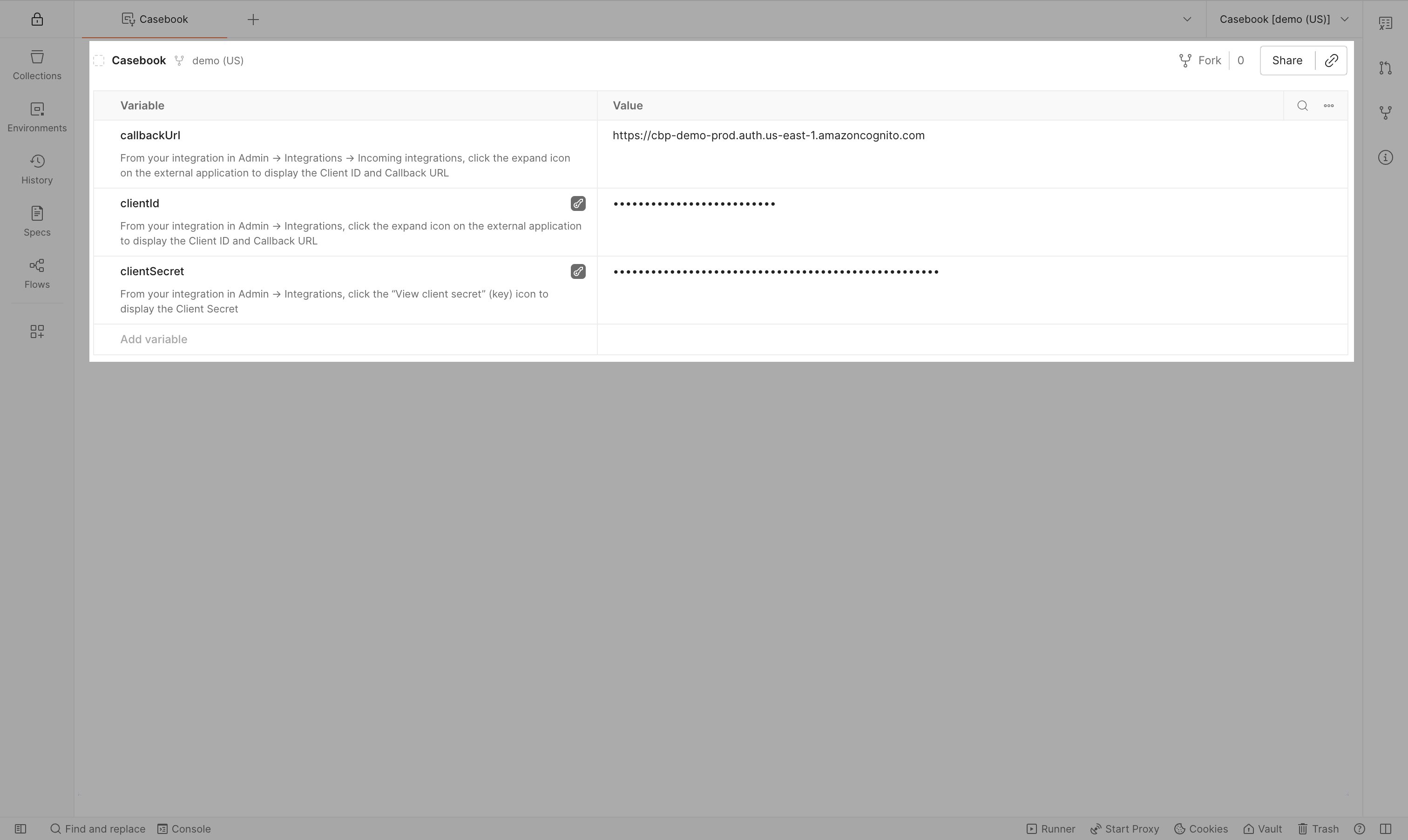
Next, you will need to populate the Client ID, Client Secret, and Callback URL in the Casebook environment. These credentials will be then be exchanged for a Bearer token for you automatically each time you send a request using Postman.
Within Postman, open the "Environments" menu and select the "Casebook" environment.
- You will only need to configure one single "Casebook" Environment to test all Casebook APIs
- If you do not yet have an Environment, then you can fork the Casebook sample environment along with any API above or you can fork the Environment directly
- Once you have selected the Casebook environment, enter the Client ID, Client Secret, and Callback URL from your incoming application in Casebook
- Save the Environment
Test APIs and endpoints with Collections
Now that you've entered your application credentials, you will be free to test all endpoints in each API that you've forked to your account.
Navigate to the "Collections" tab and select any endpoint within any API that you have forked from Casebook
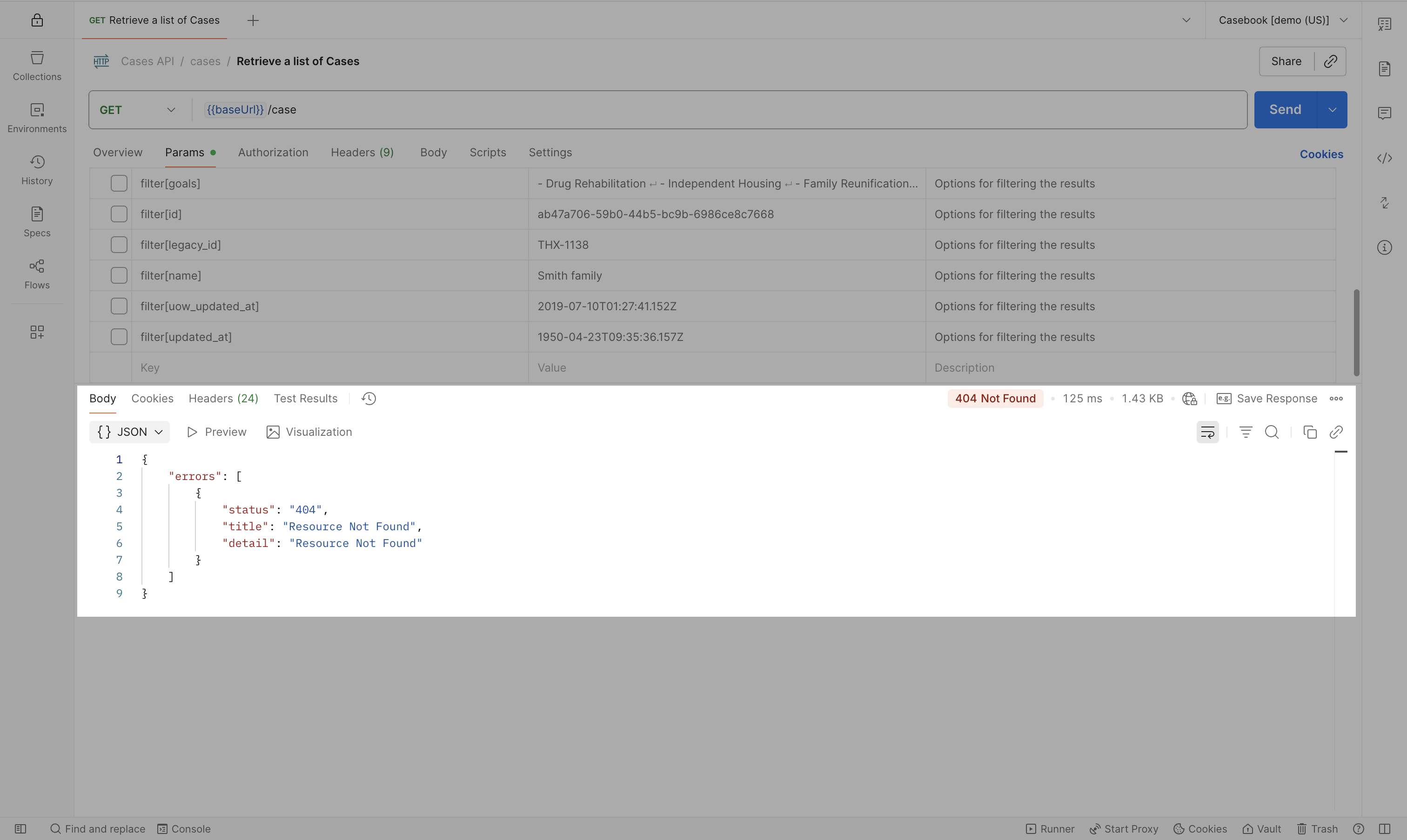
Ensure that your Casebook environment is selected then select an API and request that you would like to test (e.g. Cases API - Retrieve a list of Cases)

If the endpoint that you've selected can be safely tested, click the Send button to attempt to send the request.
If your request is successful, then the requested records will be displayed in the response pane in Postman.
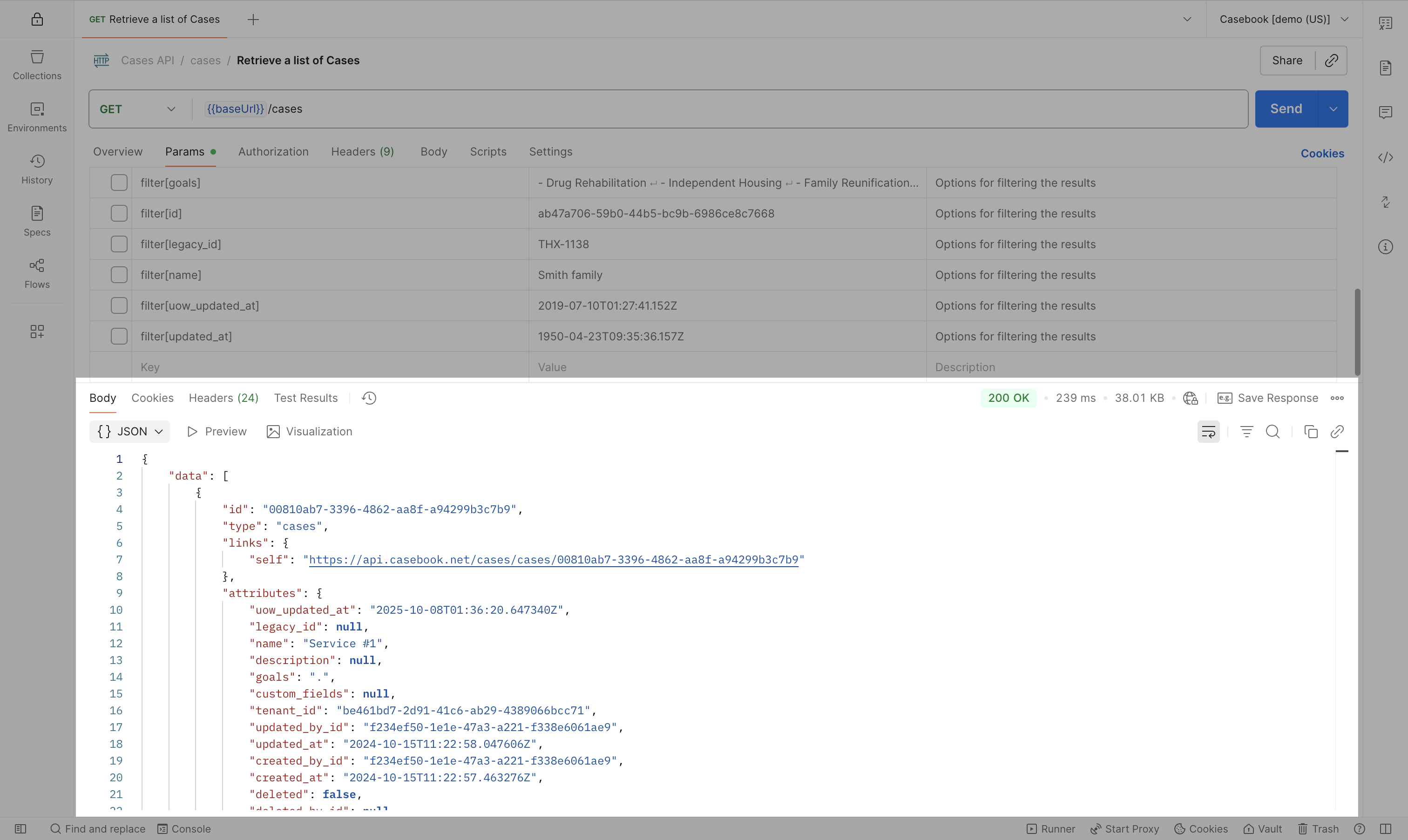
Alternatively if your request is unsuccessful, then an error message will be displayed with a status code and message that should help you sort out where there may be an issue in your request or roles.
Tips
Make any changes you would like to forked APIs - your changes will only affect your forked API without altering the API documentation.
Next steps
Next, use these forked APIs to test requests to the Casebook API in Postman:
- Work with the Cases API
- Work with the Intake API
- Work with the People API
- Work with the Providers API
For more help with the Casebook API, get in touch with the Casebook Support team.