.png?width=1286&height=255&name=logo-raspberry%20(1).png)
Introduction
The simplest way to learn and test with Casebook APIs is to "Run in Postman" before integrating.
Prerequisites
Your organization must be licensed for External Data Interoperability (API) to interact with the Casebook API.
You will need to register an incoming integration in Casebook before starting this guide.
Instructions
Run in Postman
To get started, sign up for a free Postman account which will allow you to test Casebook API endpoints before integrating.
Next, click the orange "Run in Postman" button below and follow prompts to create a working copy of the Casebook API in your Postman account.
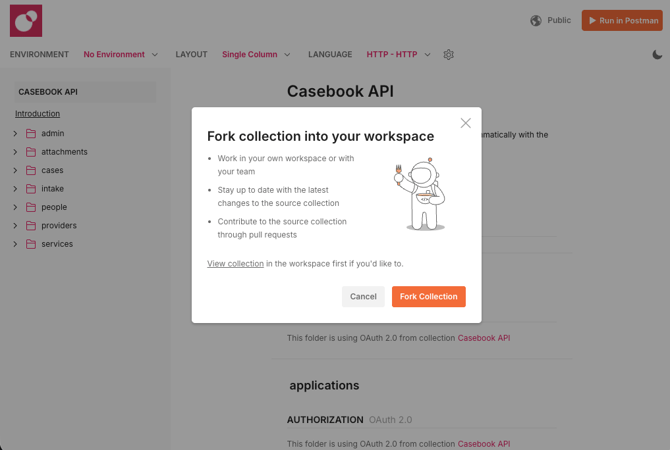
After clicking "Run in Postman", confirm that you would like to create a copy of the Casebook API in your Postman account by clicking "Fork Collection", then continue.
From the "Fork collection" page, populate details as follows:
- Fork label (Required): Set a custom name or leave the default value.
- Workspace (Required): Select the workspace where you would like to fork this API - you may likely only have one workspace.
- Notifications (Optional): It's best to leave "Watch original collection" checked so that you will be able to easily update your fork as changes are published by Casebook.
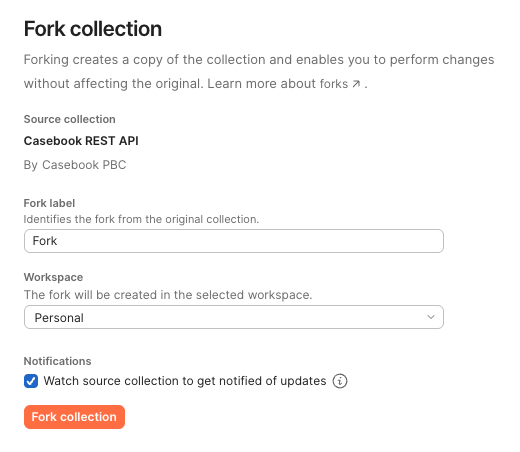
Click "Fork collection" to confirm and copy the Casebook API into your Postman account.
Connect to your Casebook incoming integration
Finally, you will connect your Casebook application so that you can work with your data in Postman. If you have not yet registered an incoming integration, start there first then return to this step.
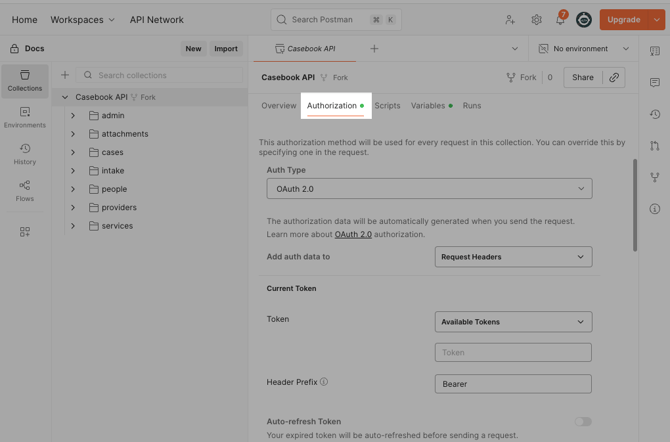
With Incoming click into the Casebook API from your Postman Collections view, then click the "Authorization" tab, then continue.
Scroll to the Configure New Token section, then populate details as follows:
-
Token Name (Required): Enter an easily identifiable name like "Casebook Bearer token".
- Grant Type: Ensure that "Client Credentials" is selected.
- Access Token URL: Enter the Callback URL from your Incoming integration, then enter "/oauth2/token" (e.g. https://cbp-your-account-prod.auth.us-east-1.amazoncognito.com/oauth2/token).
- Client ID: Enter the Client ID from your Incoming integration.
- Client Secret: Enter the Client Secret from your Incoming integration.
- Scope: Leave this field blank.
- Client Authentication: Ensure that "Send as Basic Auth header" is selected.
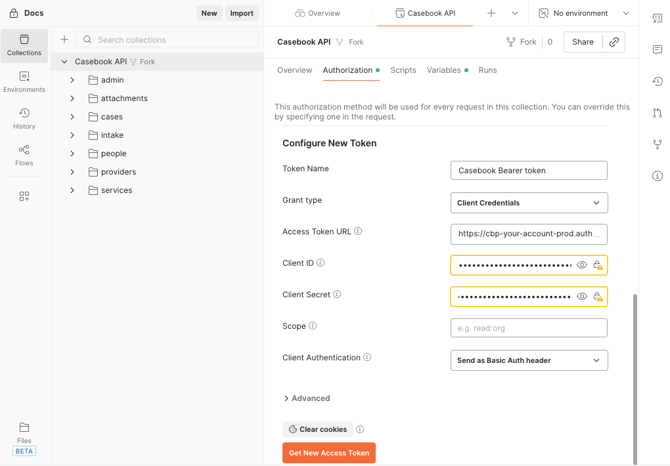
Click "Get New Access Token" to exchange these details for a Bearer token. This token will now be refreshed for you automatically as needed while using Postman.
Test APIs and endpoints with Collections
Now that you've connected Casebook to your Incoming integration, you are free to test the Casebook API.
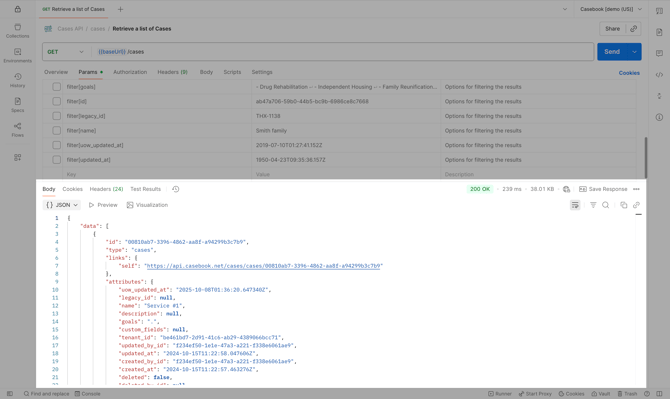
Navigate to the "Collections" tab and select any endpoint that you would like to test (e.g. Cases API - Retrieve a list of Cases).
If the endpoint that you've selected can be safely tested, click the Send button to attempt to send the request.
If your request is successful, then the requested records will be displayed in the response pane in Postman.
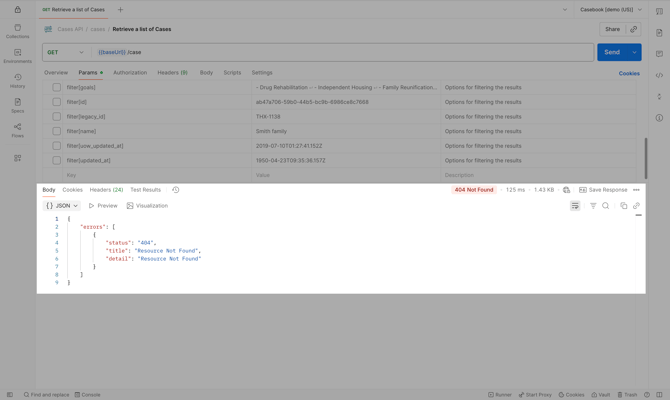
Alternatively if your request is unsuccessful, then an error message will be displayed with a status code and message that should help you sort out where there may be an issue in your request.
Tips
Your Postman information is private to your account - Your credentials can only be seen in your Postman account.
Next steps
Next, test the Casebook APIs that you would like to integrate with in Postman:
- Work with the Cases API
- Work with the Intake API
- Work with the People API
- Work with the Providers API
For more help with the Casebook API, get in touch with the Casebook Support team.